How to Find the Sitemap of a Website
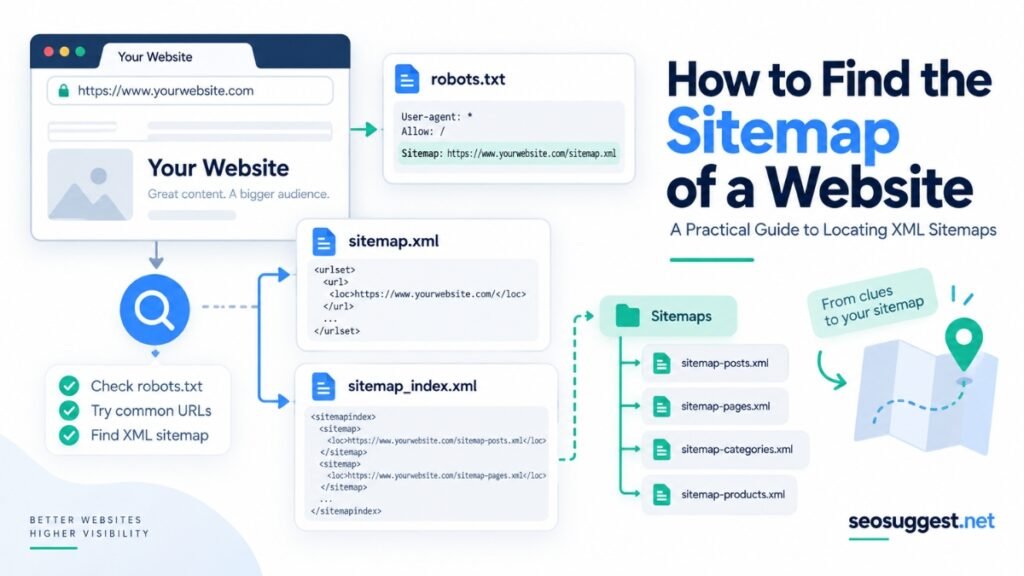
Finding the sitemap of a website can take a few seconds if you know where to look. Most XML sitemaps are publicly accessible, but their filenames and locations are not always the same.
You might need to locate a sitemap when auditing a website, researching competitors, checking site structure, finding published URLs, or diagnosing crawling and indexing issues.
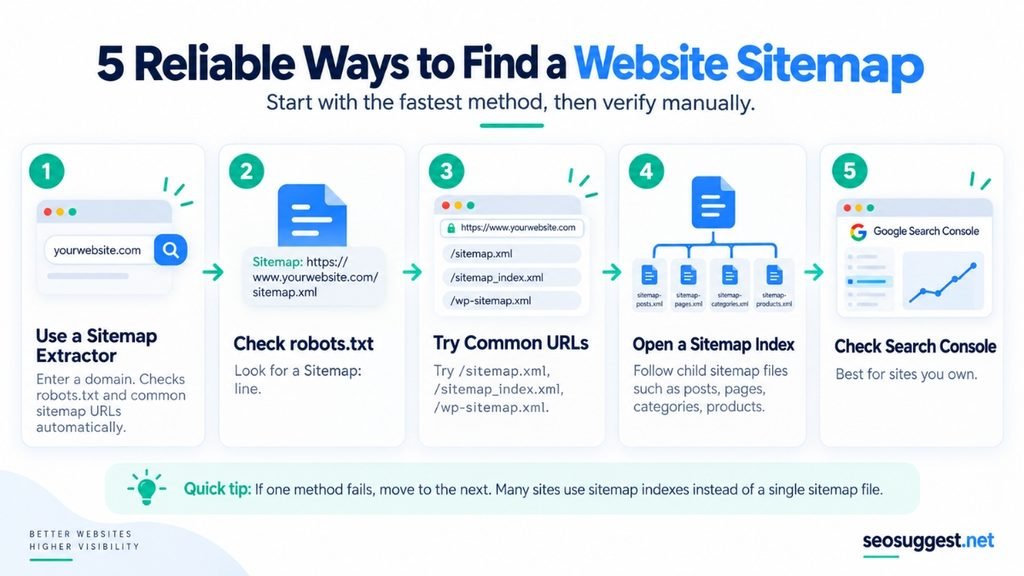
Below are the most reliable ways to find the sitemap of any website, starting with the quickest method.
1. Use a Sitemap Finder Tool
The easiest option is to use a tool that finds the sitemap automatically instead of testing different URLs manually.
You can enter a domain into the SEO Suggest Sitemap Extractor and let it locate the sitemap for you.
Simply enter:
example.comThe tool checks the website’s robots.txt file first and then searches common sitemap locations such as:
/sitemap.xml
/sitemap_index.xml
/wp-sitemap.xml
If it discovers a sitemap index, it can also follow the child sitemap files automatically.
This is especially useful when researching another website because you do not need administrator access or Google Search Console access.
The tool also extracts the URLs and converts their slugs into readable keywords, which can be useful for competitor content research and content-gap analysis.
2. Check Robots.txt
If you prefer to find the sitemap manually, start with robots.txt.
Add /robots.txt after the domain:
https://example.com/robots.txtThen search the page for:
Sitemap:You might find:
Sitemap: https://example.com/sitemap.xmlor:
Sitemap: https://example.com/sitemap_index.xmlWebsite owners can declare sitemap locations in robots.txt, making this one of the most reliable places to check.
Google explains how sitemap URLs can be provided through robots.txt in its official sitemap documentation.
However, sitemap declarations are optional. If there is no Sitemap: line, continue with the next method.
3. Try Common Sitemap URLs
Many websites use predictable sitemap addresses.
Try adding these paths to the domain:
https://example.com/sitemap.xml
https://example.com/sitemap_index.xml
https://example.com/sitemap-index.xml
https://example.com/wp-sitemap.xml
Depending on the website’s platform or SEO plugin, you may also encounter:
/post-sitemap.xml
/page-sitemap.xml
/product-sitemap.xml
/category-sitemap.xml
There is no rule requiring every website to use the same sitemap filename, so failing to find /sitemap.xml does not necessarily mean no sitemap exists.
4. Look for a Sitemap Index
Large websites often split their URLs across multiple sitemap files.
Instead of finding thousands of page URLs immediately, you may open a file containing links such as:
post-sitemap.xml
page-sitemap.xml
category-sitemap.xml
product-sitemap.xml
This is called a sitemap index.
The index acts as a directory pointing search engines toward individual sitemap files.
Google allows an individual sitemap to contain up to 50,000 URLs or 50 MB uncompressed, so larger sites commonly use multiple sitemaps.
When inspecting a sitemap index, open the child files if you want to see the actual page URLs.
5. Find a WordPress Sitemap
If you know the site uses WordPress, try:
https://example.com/wp-sitemap.xmlWordPress includes native XML sitemap functionality.
However, many WordPress websites use SEO plugins that create their own sitemap systems. In those cases, you may instead find:
https://example.com/sitemap_index.xmlChecking robots.txt or using the SEO Suggest Sitemap Extractor can save time because you do not need to know which WordPress or SEO configuration the website uses.
6. Check Google Search Console
If the website belongs to you, Google Search Console offers another option.
Open the correct property and navigate to:
Indexing → Sitemaps
There you can see sitemap URLs previously submitted to Google and whether Google was able to process them.
This method only works when you have verified access to the website.
For someone else’s website, use the public methods above instead.
How Do You Know It Is a Real Sitemap?
Opening a URL containing “sitemap” does not automatically mean you have found a valid XML sitemap.
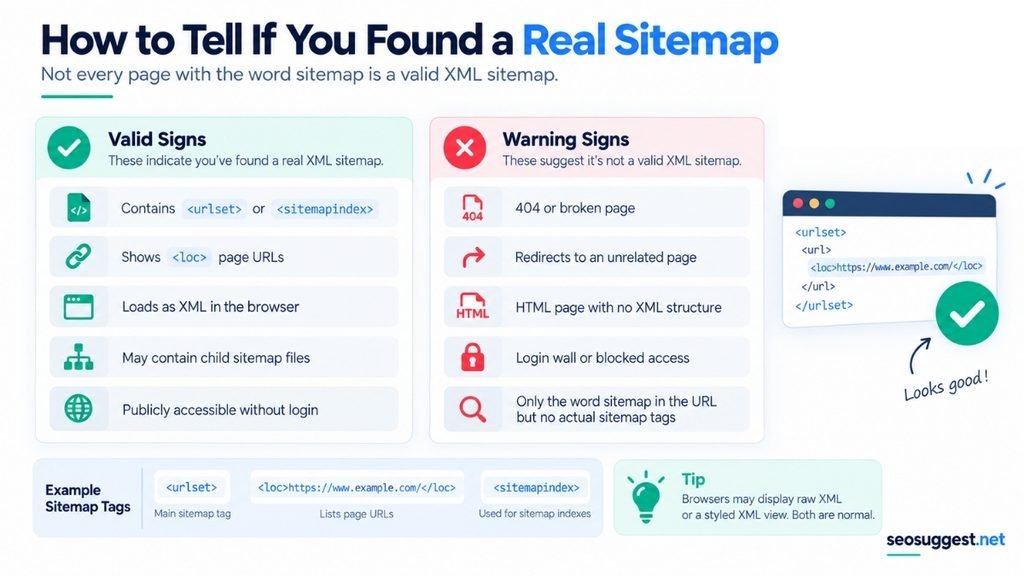
A normal sitemap commonly contains:
<urlset>and page locations such as:
<loc>https://example.com/page/</loc>A sitemap index commonly contains:
<sitemapindex>with links pointing toward other sitemap files.
Some browsers style XML files neatly, while others show raw XML code. Either appearance can be perfectly normal.
What If You Cannot Find a Sitemap?
A website may genuinely have no XML sitemap, or its sitemap may be inaccessible.
For your own website, you can create one using the SEO Suggest XML Sitemap Generator.
It can crawl your website and generate XML, sitemap index, image, video, news, TXT, and HTML sitemap formats.
Once created, upload the sitemap to your website and reference it in robots.txt or submit it through Google Search Console.
Why Find Another Website’s Sitemap?
Sitemaps can be valuable for more than technical troubleshooting.
They can help you study:
- Website structure
- Competitor content
- Product or category coverage
- Recently created pages
- Content clusters
- URL naming patterns
- Potential content gaps
For deeper competitor research, the SEO Suggest Sitemap Extractor is especially useful because it can turn page URLs into readable keyword ideas rather than forcing you to inspect thousands of URLs manually.
Conclusion
The fastest way to find a website sitemap is to enter its domain into a sitemap discovery tool such as the SEO Suggest Sitemap Extractor.
For manual checking, start with:
domain.com/robots.txtThen try /sitemap.xml, /sitemap_index.xml, and /wp-sitemap.xml.
If you find a sitemap index, follow its child sitemap files to discover the actual URLs.
And if your own website does not have a sitemap at all, generate one before submitting it to search engines.
1 comment